Quick Start
Basic Workflow
- Load DOCX template
- Add media/functions (optional)
- Apply data
- Save output
Apply template values inside Word
Let's create an input file template.docx: 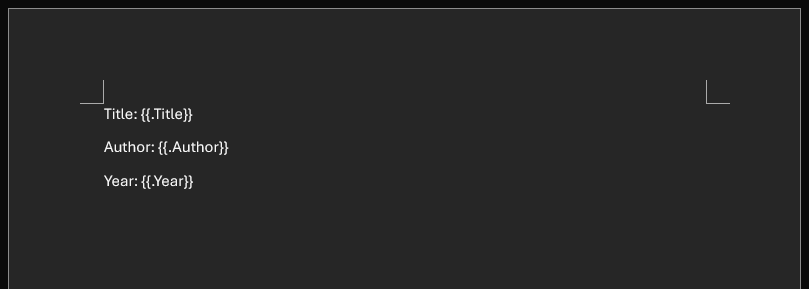
The go-template-docx library exposes 2 high-level functions:
func NewDocxTemplateFromFilename(docxFilename string) (*docxTemplate, error)and
func NewDocxTemplateFromBytes(docxBytes []byte) (*docxTemplate, error)both returning a *docxTemplate instance, which exposes methods to handle docx templates in many different ways.
Use the Apply method and a golang struct to generate your first docx file output.docx:
package main

import (
    gotemplatedocx "github.com/JJJJJJack/go-template-docx"
)

type Report struct {
    Title  string
    Author string
    Year   int
}

func main() {
    // Load template
    template, _ := gotemplatedocx.NewDocxTemplateFromFilename("template.docx")

    // Prepare data as struct
    templateValues := Report{
        Title:  "Quarterly Report",
        Author: "John Doe",
        Year:   2024,
    }

    // Apply and save
    template.Apply(templateValues)
    template.Save("output.docx")
}
INFO
The Save method overwrites any existing file with the same name.
Otherwise, the Bytes method returns the []byte content of the generated docx (if Apply was used before firstly).
alternatively, the Apply method also accepts maps as the templateValues argument:
templateValues := map[string]interface{}{
    "Title": "Quarterly Report",
    "Author": "John Doe",
    "Year": 2024,
}
or even as JSON bytes:
templateValues := []byte(`{
    "Title": "Quarterly Report",
    "Author": "Jane Doe",
    "Year": 2024,
}`)
and here's the resulting output.docx: 
That’s it for replacing text. The introduction section will continue with other template actions and instructions like for-loops, conditionals, assigning variables and more.